




The SOS Everywhere app
On iPhone and Android. It shows where the pendant or watch is, keeps every alarm on a list, and holds every setting, from who it calls to quiet hours.
 Included with SOS EverywhereWe set up your login. There's nothing to register.
These buttons, and the setup card in the box, take you to the right app. Its store listing carries its developer's name rather than ours.
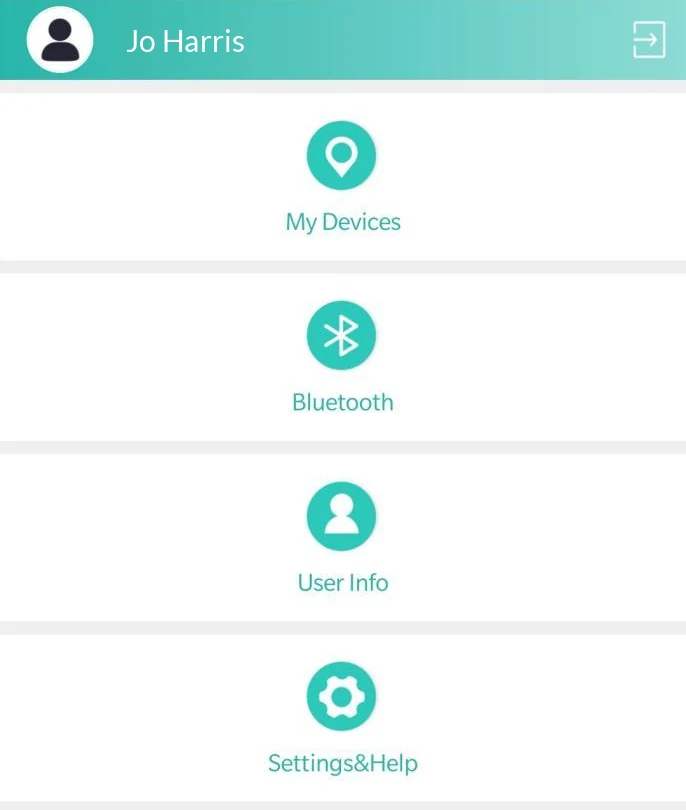
The latest location, on a map.
Open the app and the map shows where the pendant or watch last reported from. The card on the pin gives the street address, the date and time, the battery level, the signal and the working mode.The map shows where it last reported from, with the street address, the time and the battery level.
- Single LocationOne tap asks the pendant or watch for a fresh position.
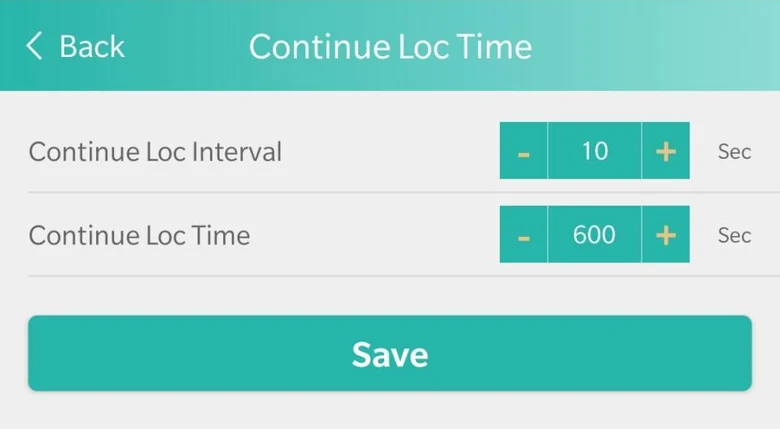
- Every 10 seconds in an SOSAfter the button is held it reports every 10 seconds for 10 minutes, as we set it.
- Every 10 minutes on the moveAnd every hour when it's still, as we set it. It stays online in between.
- From GPS, Wi-Fi and moreA position can come from GPS, Wi-Fi, the mobile network or Bluetooth beacons.
Five buttons sit across the top of the map: Single Location, History search, Geo fence list, Alarm history and Settings.
Up to 7 days in the app. Longer on a computer.
Pick a start and an end time, and the app shows where the pendant or watch reported from. For a longer range, the web dashboard on a computer searches further, exports to Excel or PDF, and plays the route back on a map.Search up to 7 days in the app. The web dashboard searches longer ranges and exports to Excel or PDF.
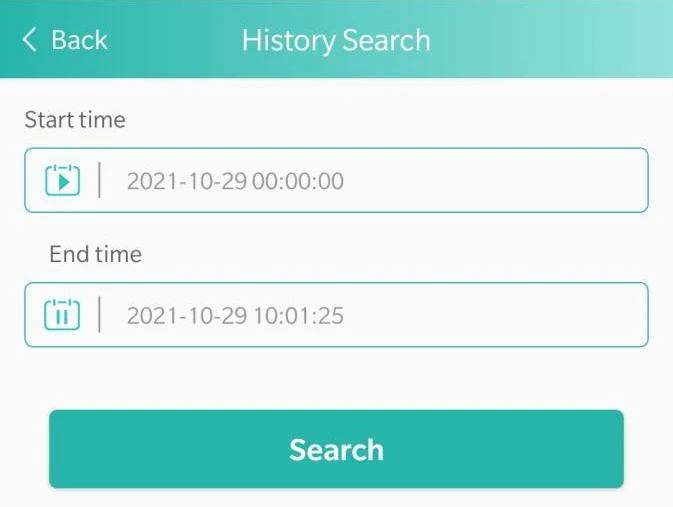
In the app: History Search
A start time and an end time, up to 7 days apart. Then Search.
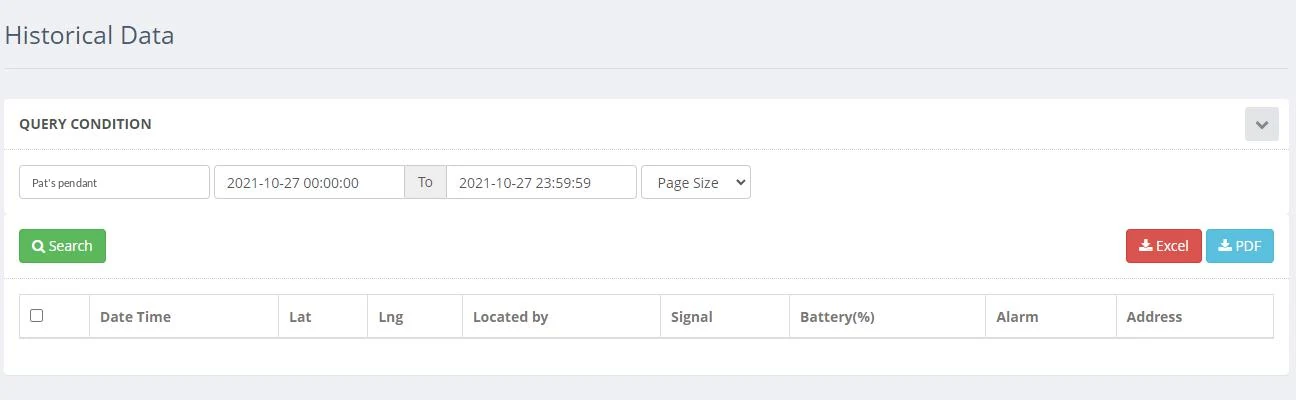
On the web dashboard: Historical Data
The range as a table: date and time, latitude and longitude, how it was located, signal, battery, any alarm and the address. Export it to Excel or PDF.
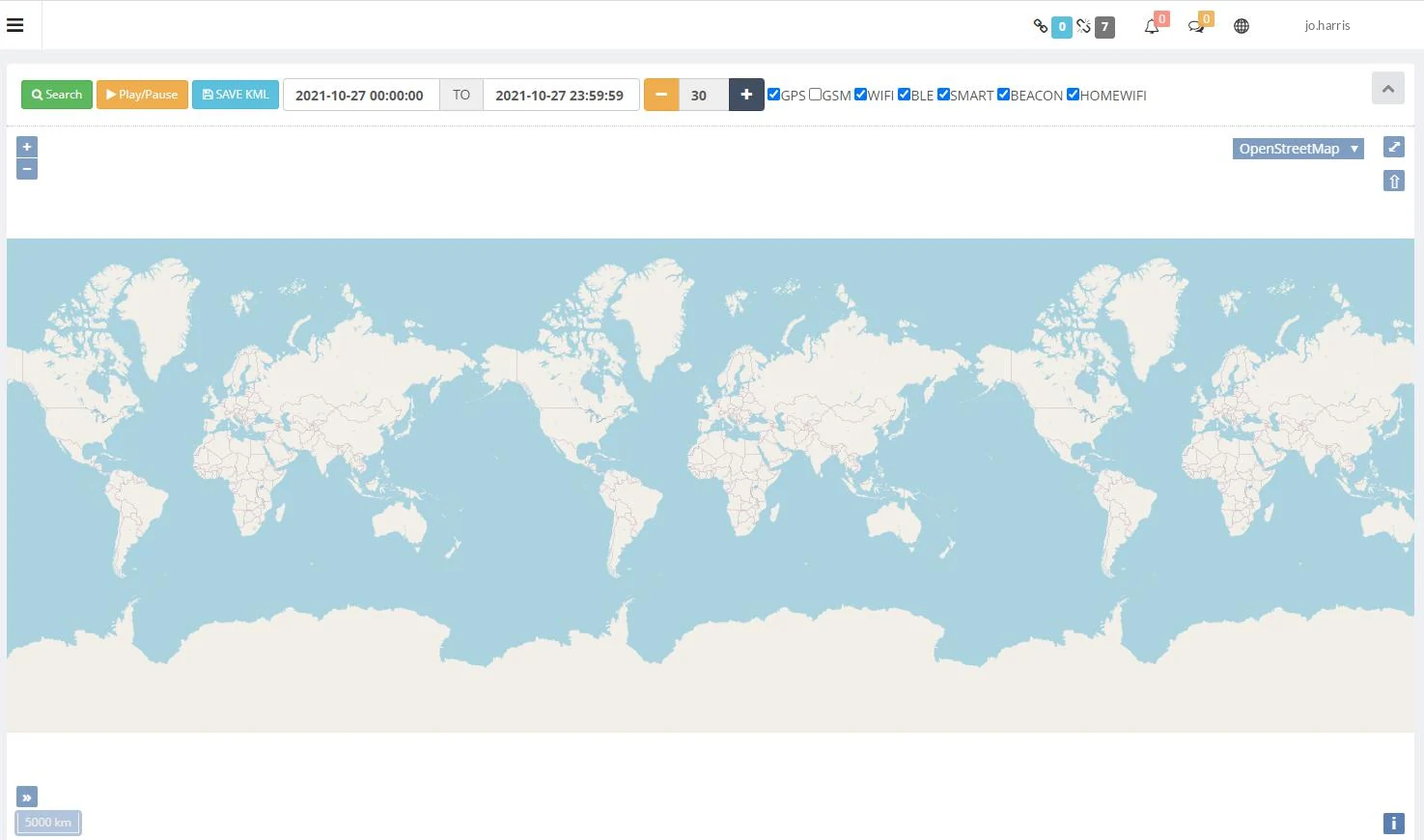
On the web dashboard: History Tracks
Plays the route back on a map, at the speed you choose. Filter by how each position was found, and save the route as a KML file.
An alert on the way in, or on the way out.
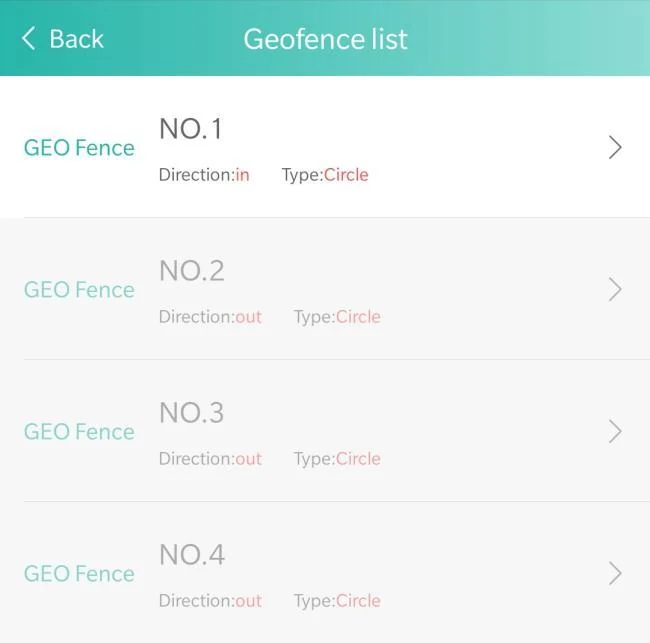
Draw up to four safe zones on the map, such as home or the shops. Each is a circle with the radius you choose, and each can be switched on or off.Up to four circles on the map, such as home or the shops. Each can be switched on or off.
- Up to 4 zonesFor each pendant or watch, numbered 1 to 4 in the app's Geofence list.
- A circle on the mapTap the map to set the centre, then choose how wide the circle is.
- In, or outEach zone alerts on the way in or on the way out. For both, set two zones.
- On the alarm listA zone alert is an alarm, so it's on the alarm list with the others.
Who it calls, and how.
Hold the button and the pendant or watch rings the people on its list, one by one, and whoever answers talks to the wearer through it. Every part of that is a setting in the app. These are the real screens.Every part of an alarm call is a setting in the app. These are the real screens.
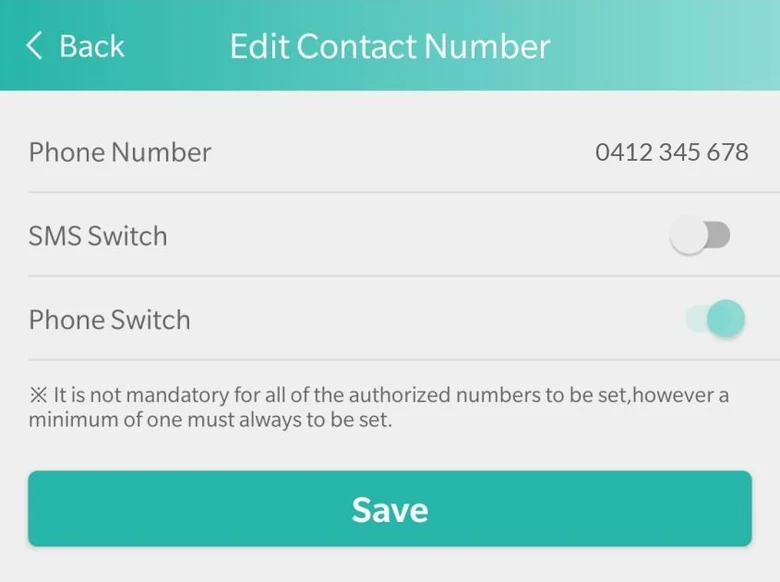
Up to 10 people, in order
Contact 1 to 10, called in list order. Each number has its own call switch and text switch, so each person gets a call, a text or both. This example number gets a call only. Change the order in the app.
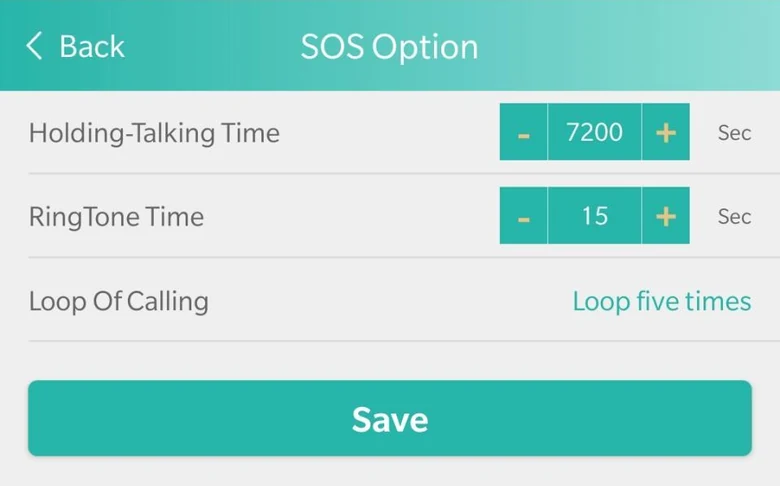
15 seconds each, five rounds
We set it to ring each person for 15 seconds, then the next. It goes round the list five times, then stops. The longest call is a setting too, here 7200 seconds: two hours.
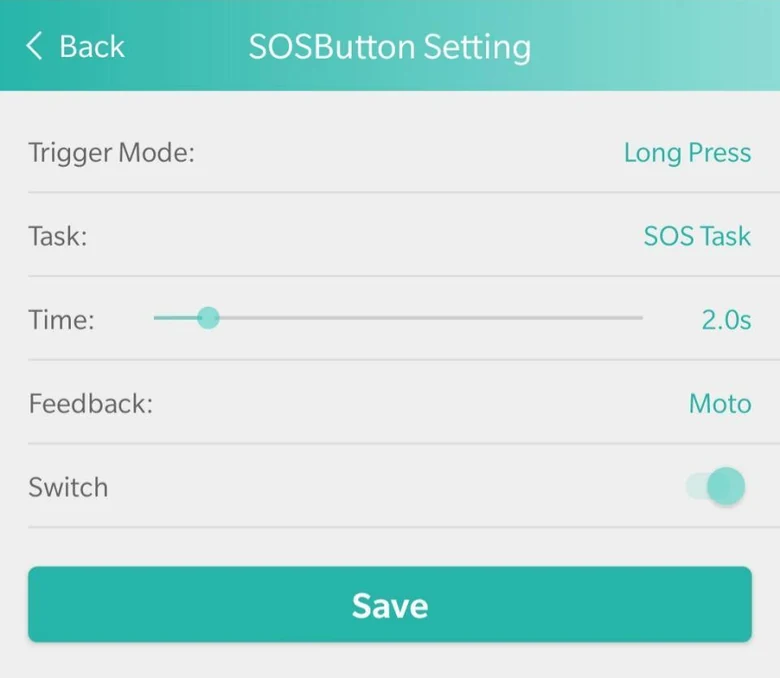
Hold the button
The SOS button is set to a 2-second hold, not a single press. It can confirm with a voice or a vibration.
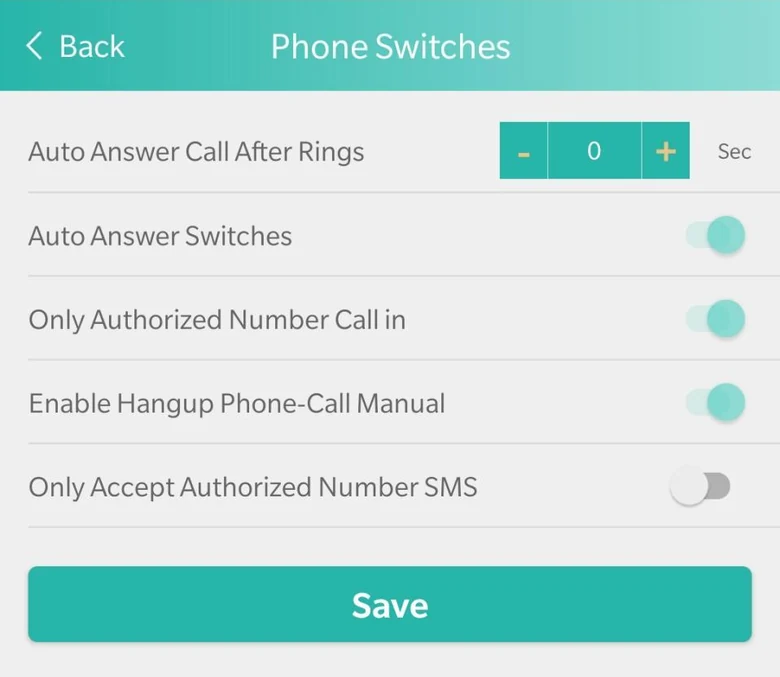
Ring it, and it can answer
Ring the pendant or watch from a number on the list and it can answer by itself. Only numbers on the list can call in: we switch that on. With auto answer off, the wearer presses the SOS button to answer.
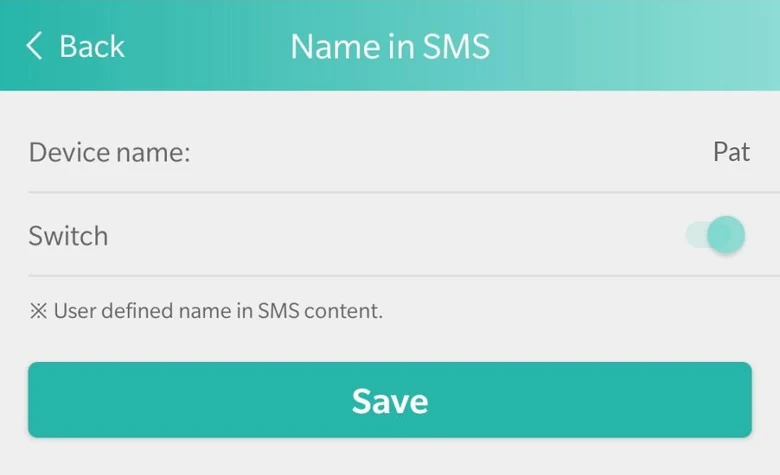
Texts start with a name
People with texts switched on get a text. Its first line is the name you give the device, such as Pat. For where it is, open the app.
Every alarm, on record.
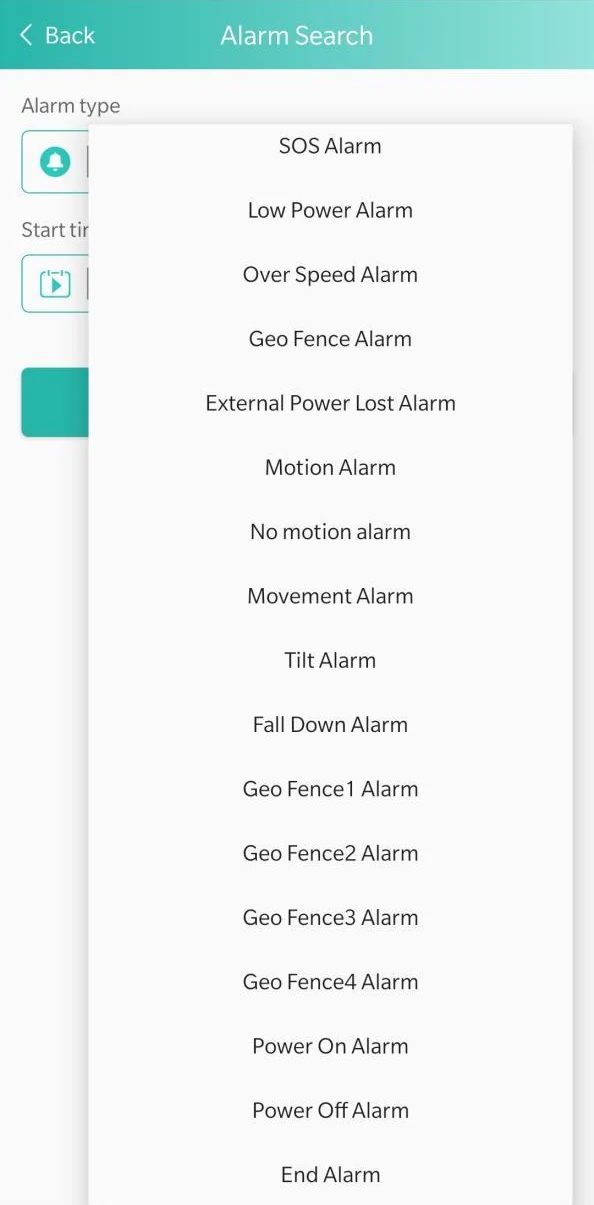
The alarm list keeps the alarms the pendant or watch raises, from the SOS button to a safe zone or a low battery. Search it by type, and by a start and end time.Every alarm is on the list. Search it by type and by date.
The alarm types in the app
- SOS
- Low power
- Over speed
- Geo fence
- Geo fence 1 to 4
- External power lost
- Motion
- No motion
- Movement
- Tilt
- Fall down
- Power on
- Power off
- End alarm
- A notification, and an emailAn alarm can come to the account holder as a notification from the app, and by email.
- A text to your contactsContacts with texts switched on get alarm texts, and a text when the battery is low.
Everything you can set from the app.
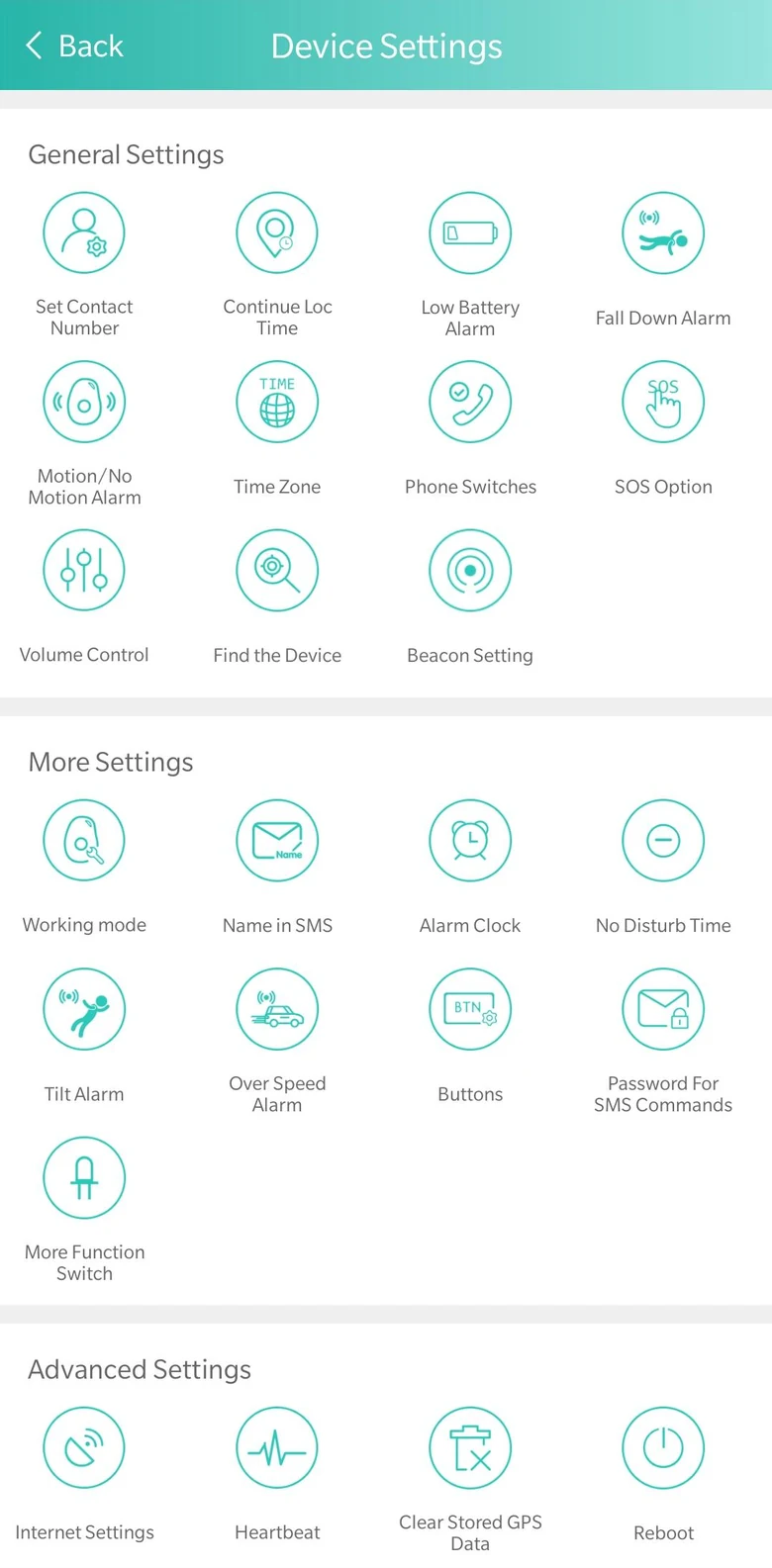
Every setting is changed from the app, over the mobile network, or by Bluetooth when your phone is next to the device. Nothing needs setting on the pendant or watch itself. These are all 24 on the app's Device Settings screen, in its own order and with its own names. Where a line says "we set" or "we switch", that's how we set it.All 24 settings on the app's Device Settings screen, with its own names. Each is changed from the app. Where a line says "we set" or "we switch", that's how we set it.
General settings
11 settings- Set Contact Number
- Up to 10 numbers, called in list order, each with its own call switch and text switch.
- Continue Loc Time
- How often it reports during an SOS. We set every 10 seconds for 10 minutes.
- Low Battery Alarm
- At 25% your contacts get a text. At 10% there's a second warning, spoken on the pendant. It can also text when it's switched on or off.
- Fall Down Alarm
- On or off, with a sensitivity from 1, the least, to 9, the most. Dial calls your contacts when it senses a fall. No fall detector catches every fall.
- Motion/No Motion Alarm
- An alarm when it moves after being still, or when it hasn't moved for a set time, such as 60 seconds. Off unless you want it.
- Time Zone
- The time zone the device keeps. Choose yours.
- Phone Switches
- Auto answer after a set number of rings. Only numbers on the list can call in: we switch that on.
- SOS Option
- How long it rings each person, how many rounds, and the longest call. We set 15 seconds and five rounds.
- Volume Control
- Ring tone, microphone and speaker levels.
- Find the Device
- Tap it and the pendant or watch says "I'm here" out loud.
- Beacon Setting
- Add Bluetooth beacons to locate from. Scan the beacon's code, type its address or find it by Bluetooth.
More settings
9 settings- Working mode
- How often it reports where it is. We set mode 6: every 10 minutes moving, every hour still.
- Name in SMS
- The name on the first line of every text it sends, such as Pat.
- Alarm Clock
- Up to 4 reminders, such as getting up or tablets. Each rings one of three tunes, and can repeat.
- No Disturb Time
- A start and an end time when the device makes no sound.
- Tilt Alarm
- An alarm when it's tilted past an angle for a set time, such as 45° for 30 seconds. Off unless you want it.
- Over Speed Alarm
- An alarm above a set speed, such as 80 km/h. Off unless you want it.
- Buttons
- The SOS button. It's set to a 2-second hold, not a single press. It can confirm with a voice or a vibration.
- Password For SMS Commands
- Text commands to the device only work with this password.
- More Function Switch
- Wi-Fi, mobile network and Bluetooth location, and the lights, beep, vibration and speakers, each on or off.
Advanced settings
4 settings- Internet Settings
- The mobile data details it uses to reach the app and the web dashboard. Best left as they are.
- Heartbeat
- A check-in with the network every 15 minutes, as we set it, so the app and the web dashboard show whether it's online.
- Clear Stored GPS Data
- Clears the location data stored on the device.
- Reboot
- Restarts the device. A restart, not a reset.
A closer look at four of them
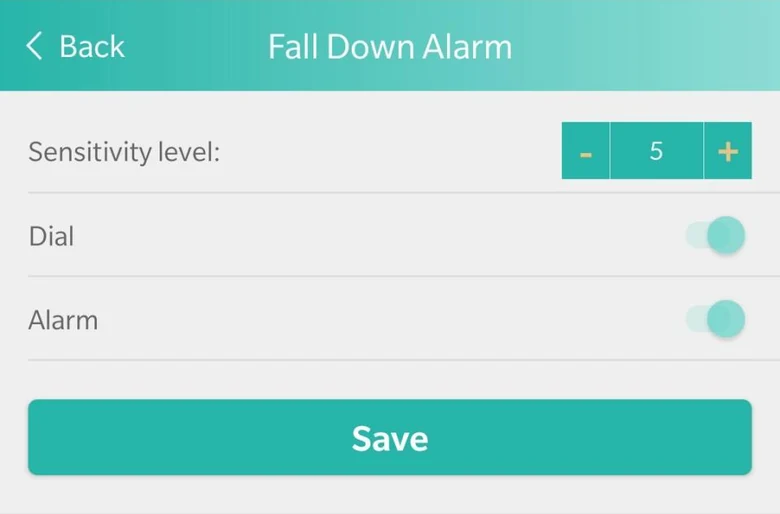 Fall Down AlarmHere at level 5 of 9, with Dial on, so it calls your contacts when it senses a fall. No fall detector catches every fall.
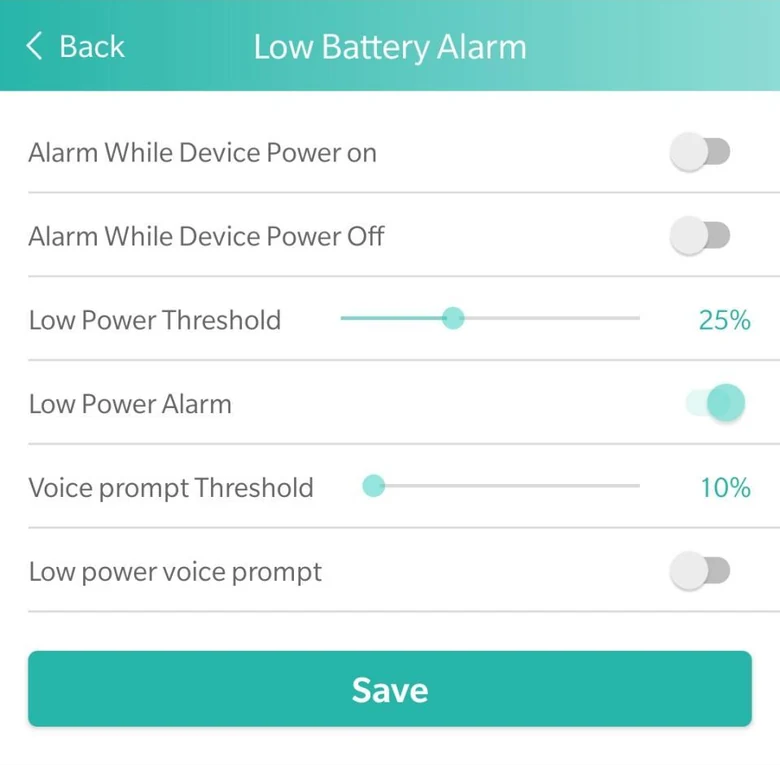 Low Battery AlarmThe low power alarm at 25% and the voice prompt at 10%, with switches for a text when it's switched on or off.
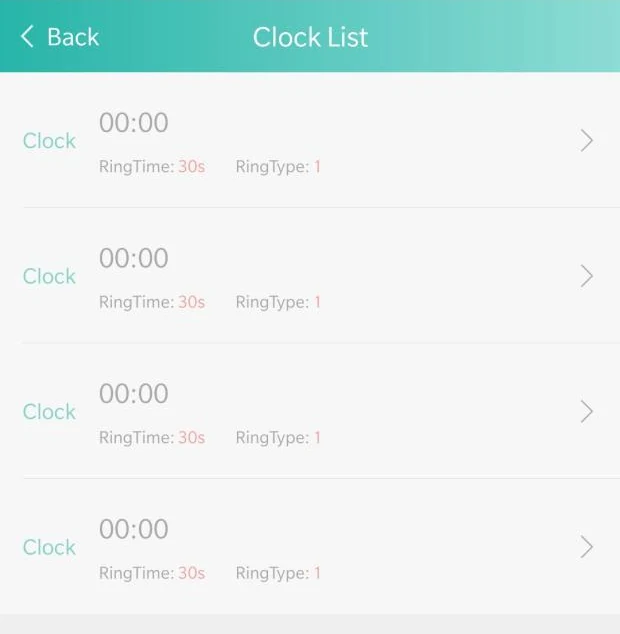 Clock ListFour reminders, each with a time, how long it rings and which of three tunes. It rings a tune rather than speaking.
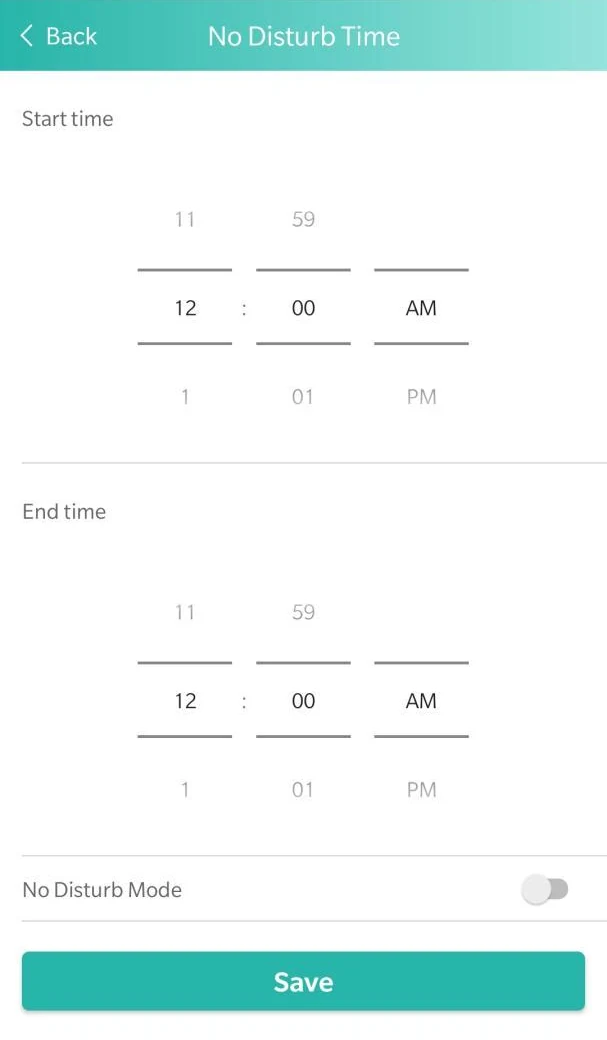 No Disturb TimeA start time, an end time and a switch. In between, the device makes no sound.
The same login, on a computer.
Open the web dashboard and sign in with the login you use in the app. It's handy for a bigger screen, a longer history, or a copy in Excel or PDF.
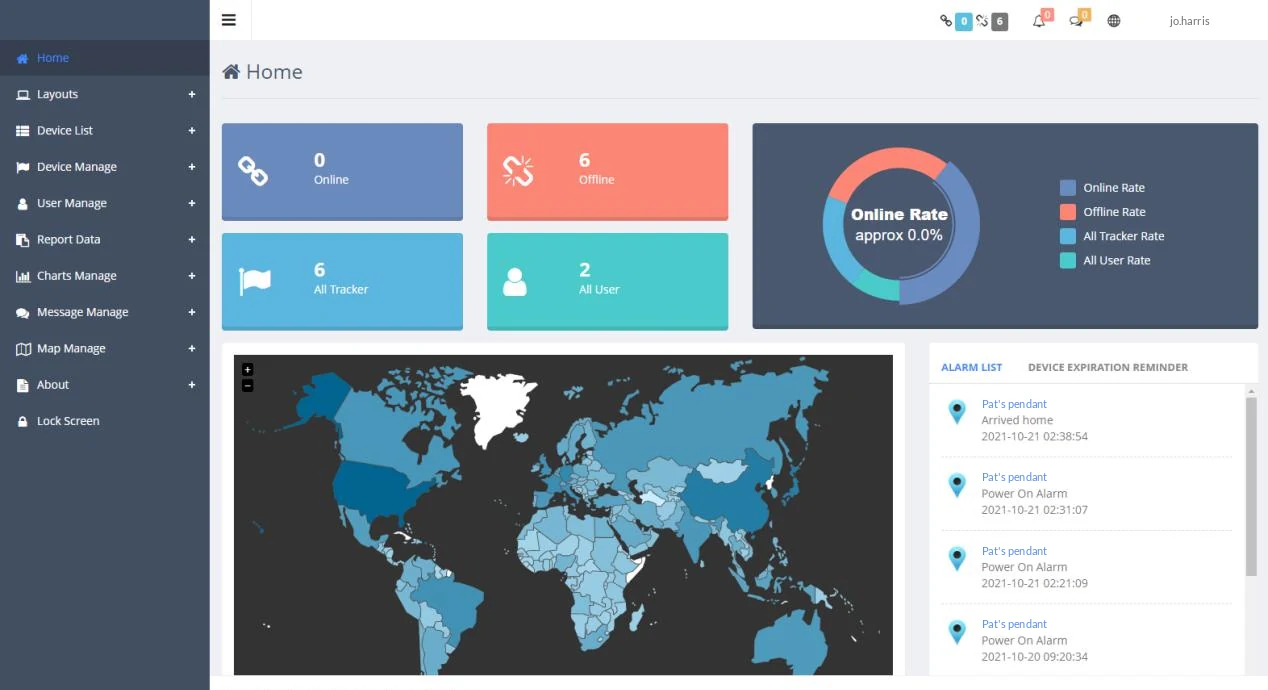
- Online or offlineThe home page counts devices online and offline. In the device list, each shows green when it's online and grey when it isn't.
- The alarm listRecent alarms beside a world map, with a tab of device expiry reminders.
- History and tracksHistorical Data searches longer ranges. History Tracks plays the route back on a map.
- ExportSave the history to Excel or PDF, or a route as a KML file.
Three steps. We do the first.
Step 1: We set up your login
We set up the pendant or watch, and your app login, for you. There's nothing to register.
Step 2: Download the app
Use the buttons below, or the setup card in the box. They take you to the right app on the App Store or Google Play. Its listing carries its developer's name rather than ours.
Step 3: Sign in
Use the login we set up. The same login works on the web dashboard, on a computer.
Need a hand signing in? Ring us on 1800 046 464.
Questions about the app
More about SOS Everywhere
- SOS Everywhere PendantOne waterproof button that rings your family in order. The app shows where it is.One waterproof button. Rings your family in order.
- SOS Everywhere WatchThe same alarm, worn as a watch, with the same app.The same alarm, worn as a watch.
- How it worksWhat happens when you hold the button, step by step.What happens when you hold the button.
- FundingHCP, Support at Home, CHSP through Indigo's geat2GO platform, NDIS, DVA and EnableNSW: who qualifies and what to ask for.HCP, Support at Home, CHSP through Indigo's geat2GO platform, NDIS, DVA and EnableNSW.